Install Lightroom presets in Lightroom (CC; current cloud-based subscription)
Follow
Prefer a video guide?
To begin, make sure your software is up-to-date via Help > Updates...
Let's begin at your Luxe Downloads Page:
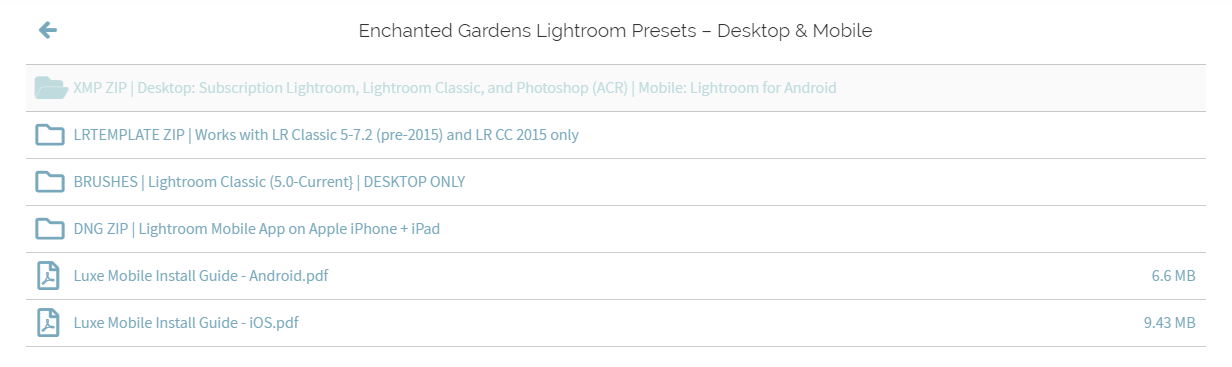
Download the MANUAL INSTALLATION | XMP Presets

STEP 1: Open Adobe Lightroom
STEP 2: Click on the "Presets" icon
STEP 3: Select the three dots to open a drop-down menu. From the drop-down menu options, select "Import Presets..."
STEP 4: Locate your preset downloads (unless you saved them elsewhere, these are likely in your "Downloads" folder). Select all of the files you downloaded, and click "Import". You can import entire .Zip files (the fastest method) or as individual .XMP files.
STEP 5: If the correct file type, you will see a "Loading Presets..." message and a loading bar.
STEP 8: Your presets are now loaded and functional! You can find them organized into folders under that "Presets" button!
Note: You can NOT import .LRTEMPLATE files or local adjustment brush files in the cloud-based version of Lightroom. brushes are only compatible with Lightroom Classic (and Classic CC) and not the cloud-based version of Lightroom (formerly known as Lightroom CC).